Laserjet Pro MFP M428fdw, M329, M428, M429 - 13.04 jam error tray 3
Laserjet Pro MFP M428fdw, M329, M428, M429 - 13.04 jam error tray 3
13.04 jam error tray 3
Use the following procedure to check for paper in all possible jam
locations related to Tray 3. When a jam occurs, the following message
displays on the printer control panel:
-
13.04.yz Paper is jammed in Tray 3
-
Open Tray 3 and remove it from the printer.Figure : Open and remove Tray 3

-
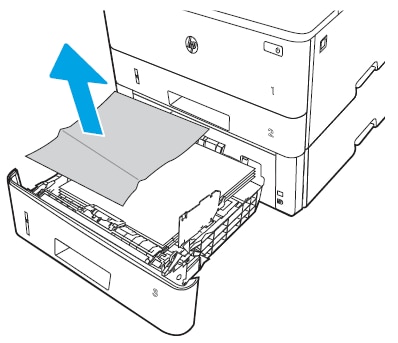
Remove the paper from Tray 3, and discard any damaged paper.Figure : Remove the paper and discard any damaged sheets
-
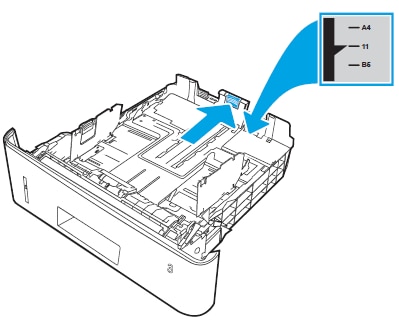
Verify that the rear paper guide is adjusted to the indentation for the correct paper size. If necessary, pinch the release and move the rear paper guide to the correct position. It should click into place.Figure : Verify that the paper guide is adjusted correctly for the size of paper
-
Load paper in Tray 3. Make sure that the stack is flat at all four corners and that the top of the stack is below the maximum-height indicators.Figure : Load paper in Tray 3

-
Reinsert Tray 3 in the printer and push it inward to close it.Figure : Reinsert and close Tray 3

-
Press the front-door release button on the side of the printer.Figure : Press the front-door release button

-
Open the front door on the printer.Figure : Open the front door

-
Remove the toner cartridge from the printer.Figure : Remove the toner cartridge

-
Lift the jam-access cover.Figure : Lift the jam-access cover

-
Gently pull out any jammed sheets of paper from inside the printer.Figure : Remove any jammed paper

-
Reinstall the toner cartridge in the printer.Figure : Reinstall the toner cartridge

-
Close the front door on the printer.Figure : Close the front door

https://support.hp.com/

Comments
Post a Comment